
Windows Terminal là terminal hiện đại của Microsoft — thay thế CMD + PowerShell cũ với đa tab, GPU rendering, WSL2 tích hợp, JSON config. Free, built-in Windows 11 từ 2022. Bài này cover setup PowerShell + WSL + SSH, 10 theme đẹp, oh-my-posh prompt, và so sánh Warp/Alacritty 2026.
- 1Windows Terminal 2026 — terminal chuẩn cho dev Windows›
- 2Vì sao dev Windows chuyển sang Windows Terminal›
- 3So sánh Windows Terminal với Warp, Alacritty, ConEmu›
- 4Setup Windows Terminal production — PowerShell + WSL2 + SSH›
- 510 shortcut + feature Windows Terminal pro dùng daily›
- 6Khi nào Windows Terminal không đủ + alternative›
- 7Câu hỏi thường gặp›
- 8Nguồn tham khảo›
Windows Terminal 2026 — terminal chuẩn cho dev Windows
Windows Terminal là terminal hiện đại MIỄN PHÍ của Microsoft, thay thế CMD + PowerShell ISE cũ. Built-in Windows 11 từ 2022, Windows 10 cần install qua Microsoft Store. Đa tab, split pane, GPU rendering (không giật khi scroll nhiều), WSL2 tích hợp native, Azure Cloud Shell, SSH client. Config JSON mạnh — font, theme, keybinding customize hoàn toàn. v1.21 (2026) thêm: AI-assist command suggestion (qua Azure OpenAI), Quake mode improved, Copilot integration beta. Open-source MIT trên GitHub.
So với terminal cũ CMD (từ 1987) hoặc PowerShell ISE (deprecated 2017), Windows Terminal modernize hoàn toàn. Competitor 2026: Warp (AI-native, cross-platform, $20/tháng Pro), Alacritty (Rust GPU terminal, minimalist, free), ConEmu (legacy Windows, vẫn tốt).
Bài này dành cho: Windows dev mới bắt đầu, user upgrade từ CMD/PowerShell ISE, DevOps multi-environment (PowerShell + WSL + SSH). Không cần Mac/Linux.
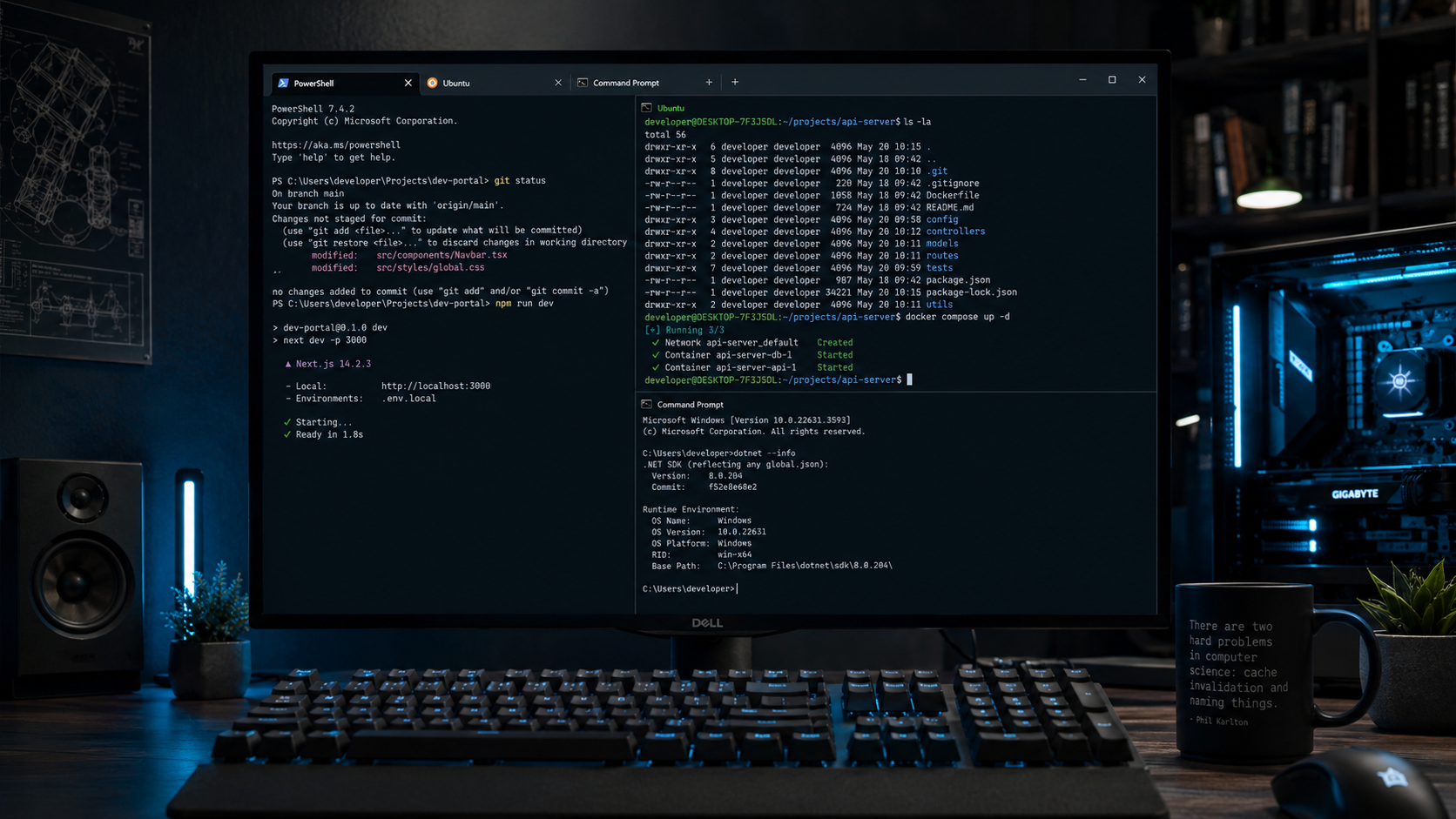
Vì sao dev Windows chuyển sang Windows Terminal
5 lý do Windows Terminal replace CMD + PowerShell ISE cũ:
-
1
Đa tab + split pane: Mở PowerShell + WSL Ubuntu + SSH server + CMD cùng cửa sổ.
Ctrl+Tnew tab,Alt+Shift+Dsplit horizontal,Alt+Shift+Esplit vertical. Không cần 4 cửa sổ riêng. - 2 GPU text rendering: Scroll 100k line log mượt không lag (CMD cũ scroll chậm). Unicode + emoji render đúng (dev làm bot Discord cần emoji output).
-
3
WSL2 integration native:
wslcommand mở Ubuntu/Debian/Fedora trong 1 giây. Dev full-stack VN làm backend Linux trên laptop Windows — essential. - 4 Config JSON: settings.json customize hoàn toàn. Version control được, share với team. Dễ hơn config CMD cũ qua Registry.
-
5
Command palette + Action:
Ctrl+Shift+P(như VS Code) — tìm action bất kỳ. Không cần nhớ shortcut.
CMD (Command Prompt) vẫn có chỗ: (1) Script batch .bat legacy. (2) Compatibility với tool Windows XP-era. (3) Maintenance Windows (sfc /scannow, chkdsk). Với dev hiện đại 2026: PowerShell 7+ trong Windows Terminal đủ 99% use case.
So sánh Windows Terminal với Warp, Alacritty, ConEmu
| Tiêu chí | Windows Terminal | Warp | Alacritty | ConEmu | Cmder |
|---|---|---|---|---|---|
| Giá | Free MIT | Free / $20 Pro | Free MIT | Free BSD | Free |
| Platform | Windows | Win/Mac/Linux | Win/Mac/Linux | Windows | Windows |
| AI features | ⚠️ Copilot beta | ✅ Built-in | ❌ | ❌ | ❌ |
| GPU render | ✅ | ✅ | ✅ Best | ❌ | ❌ |
| WSL2 integration | ✅ Native | ✅ | ⚠️ | ✅ | ✅ |
| Customize JSON | ✅ | ⚠️ YAML | ✅ YAML | GUI | .ini |
| RAM idle | 100MB | 400MB | 40MB | 80MB | 80MB |
| Maintained 2026 | ✅ Active | ✅ Active | ✅ | ⚠️ Slow | ⚠️ Slow |
Khuyến nghị: - Windows dev cơ bản: Windows Terminal — free, built-in, đủ mạnh. - Windows + Mac + Linux cross-platform: Warp — AI feature đáng giá $20/tháng. - Minimal + performance: Alacritty — RAM thấp nhất, scroll mượt nhất. - Legacy Windows user: ConEmu còn dùng được nhưng update chậm.
Xem bài 5 utility cho developer 2026 — phần Warp comparison chi tiết.
Setup Windows Terminal production — PowerShell + WSL2 + SSH
- 1 Install Windows Terminal (1 phút): Windows 11 đã built-in — search 'Terminal' trong Start menu. Windows 10: Microsoft Store → 'Windows Terminal'. Alternative: GitHub release trực tiếp.
-
2
Install PowerShell 7+ (2 phút): Windows Terminal mặc định dùng PowerShell 5.1 (old). PowerShell 7 mới hơn, cross-platform, nhanh hơn. Install qua
winget install Microsoft.PowerShellhoặc Microsoft Store. -
3
Enable WSL2 + Ubuntu 24.04 (5 phút): PowerShell Admin →
wsl --install -d Ubuntu-24.04. Reboot. First launch Ubuntu, set username + password. WSL2 tab sẽ tự xuất hiện trong dropdown Windows Terminal. -
4
Config settings.json (5 phút):
Ctrl+,mở settings UI hoặc 'Open JSON file'. Cấu hình đề xuất: - 5 Install Nerd Font cho prompt icon (2 phút): Tải CaskaydiaCove Nerd Font. Install → chọn font này trong Windows Terminal setting.
-
6
Setup oh-my-posh cho PowerShell prompt đẹp (5 phút):
winget install JanDeDobbeleer.OhMyPosh. Thêm vào PowerShell profile:oh-my-posh init pwsh | Invoke-Expression. Prompt sẽ hiện git branch + time + exit code. -
7
SSH client config (3 phút): Windows 11 built-in OpenSSH.
ssh [email protected]work ngay. Config~/.ssh/configcho shortcut:
SSH key trên Windows lưu C:\Users\<name>\.ssh\. Đảm bảo file permission đúng (chỉ owner đọc): icacls id_ed25519 /inheritance:r /grant:r "$($env:USERNAME):(R)". Xem Bảo mật tài khoản 2026 cho backup + recovery SSH key.
10 shortcut + feature Windows Terminal pro dùng daily
- Ctrl+T — New tab (cùng profile default).
- Ctrl+Shift+T — New tab dropdown (chọn profile: PowerShell/WSL/SSH).
- Ctrl+W — Close tab.
- Ctrl+Tab / Ctrl+Shift+Tab — Switch tab forward/backward.
- Ctrl+Shift+P — Command palette (tìm action bất kỳ).
- Alt+Shift+D — Split pane duplicate (pane hiện tại).
- Alt+Shift+Plus — Split pane vertical.
- Alt+Shift+Minus — Split pane horizontal.
- Alt+Arrow — Switch active pane.
- Ctrl+Shift+F — Find in terminal buffer.
- Ctrl+Shift+Space — Tab dropdown.
- F11 — Fullscreen toggle.
- Ctrl+Scroll — Zoom text size.
- Ctrl+= / Ctrl+- — Text size adjust.
Quake Mode (drop-down terminal như game console): Settings → Quake → win+backtick to trigger. Terminal slide down từ top màn hình. Hữu ích cho quick command giữa work flow.
Khi nào Windows Terminal không đủ + alternative
Cân nhắc chuyển Warp/Alacritty: - Cross-platform Mac/Linux: Warp hoặc Alacritty — Windows Terminal chỉ Windows. - AI-heavy workflow: Warp AI command search + explain tốt hơn Windows Terminal Copilot beta. - Performance tối đa (RAM, scroll speed): Alacritty — pure Rust GPU, 40MB RAM. - Session manager nâng cao: Tabby (Electron-based, free) — session SSH manager built-in. - DevOps heavy SSH: MobaXterm ($69/năm, Windows only) — X11 forwarding, SFTP, RDP integration.
Stay Windows Terminal cho: - Windows dev daily, không dùng Mac/Linux thường xuyên. - Budget $0 + built-in Windows 11. - Use case PowerShell + WSL2 chính. - Team dev Windows — standardize Windows Terminal đơn giản hóa setup onboard.
Câu hỏi thường gặp
Windows Terminal và PowerShell khác gì?
▾
Windows 10 có dùng Windows Terminal được không?
▾
WSL2 tốt hơn Git Bash không? Cho dev web VN?
▾
Terminal chạy lệnh chậm / lag, fix thế nào?
▾
$PROFILE có load nhiều module không cần thiết. Dùng Measure-Command { . $PROFILE } để đo. (3) Oh-my-posh prompt calculate git status mỗi lệnh — disable git info trong prompt nếu repo lớn.Có cách nào share Windows Terminal config qua nhiều máy?
▾
%LOCALAPPDATA%\Packages\Microsoft.WindowsTerminal_8wekyb3d8bbwe\LocalState\settings.json. (3) Dotfiles repo Git — commit settings.json vào personal dotfiles GitHub repo, git clone trên máy mới.