
Setup Mac M4 Pro cho dev fullstack 2026: Homebrew, iTerm, VS Code, Docker end-to-end
Mac M4 Pro năm 2026 là máy dev lý tưởng nhưng setup mới mất 3-4 giờ nếu không có quy trình. Bài này hệ thống 25 bước từ xcode-select tới dotfiles, cài stack Node/Python/Go/Rust, Docker, VS Code + extension must-have.
- 1TLDR — setup Mac M4 trong 2 giờ›
- 2Bước 1-5: System Preferences + Xcode CLI›
- 3Bước 6-10: Homebrew + essential tool›
- 4Bước 11-15: Zsh + Oh My Zsh + Powerlevel10k›
- 5Bước 16-20: Stack ngôn ngữ qua version manager›
- 6Bước 21-25: Docker, VS Code config, dotfiles sync›
- 7Nâng cao: Brewfile + cài lại máy 1 lệnh›
- 8Câu hỏi thường gặp›
- 9Nguồn tham khảo›
TLDR — setup Mac M4 trong 2 giờ
Flow chuẩn: System Preferences → Xcode CLI tools → Homebrew → iTerm2 + Zsh → VS Code + extension → Node/Python/Go/Rust via version manager → Docker Desktop → dotfiles sync. Thời gian trung bình: 2 giờ cho M4 Pro, 2.5 giờ cho M4 Max (download package lớn).
Mac M4 Pro (release tháng 10/2024) với chip Apple Silicon thế hệ 4 là máy dev lý tưởng năm 2026: 16-24 core CPU, 16-128GB unified memory, GPU 20-40 core, kèm Neural Engine 38 TOPS. Setup đúng cách sẽ tận dụng được sức mạnh ARM64 native, thay vì chạy Rosetta 2 emulation chậm gấp 2-3 lần.
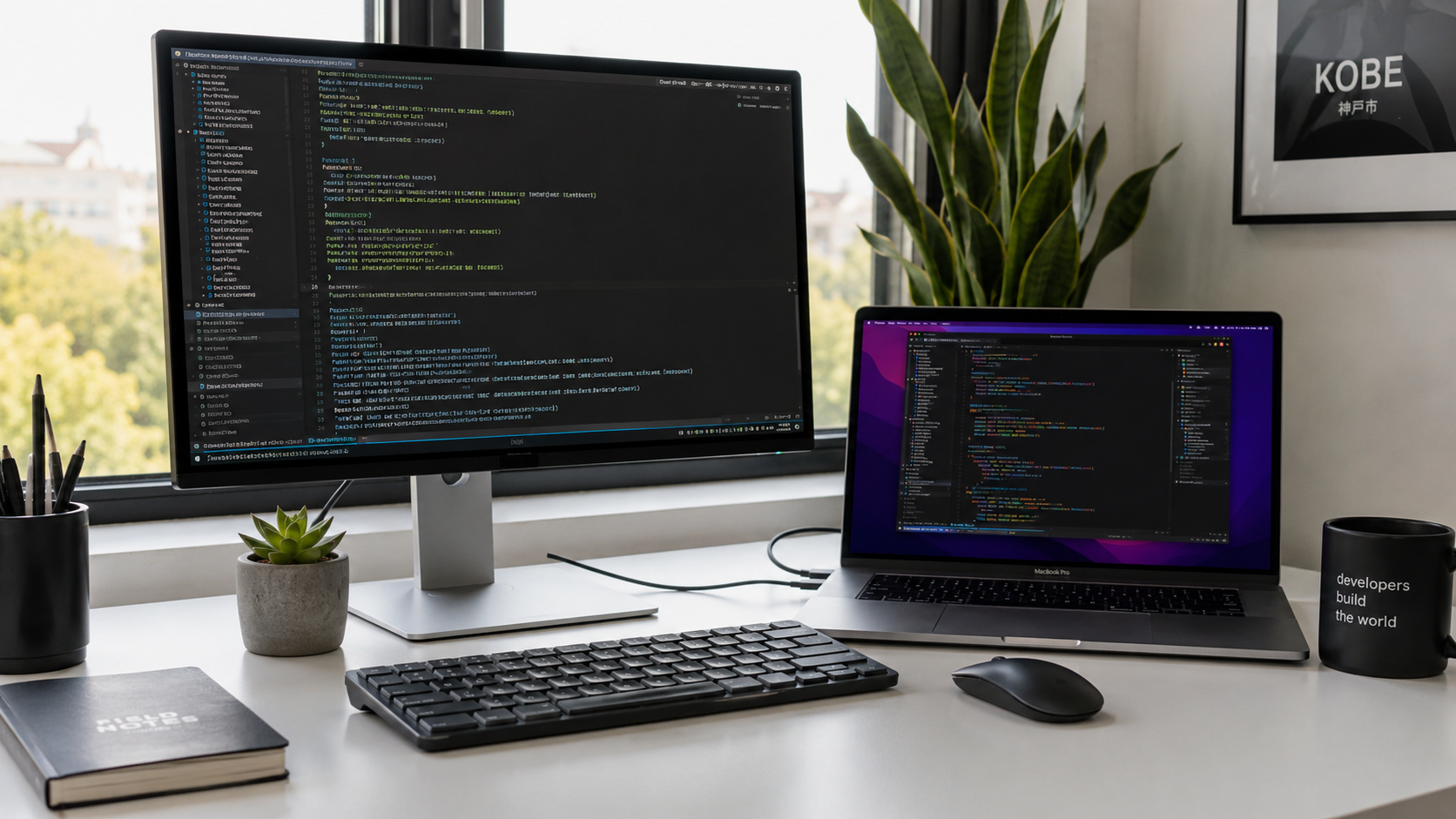
Bước 1-5: System Preferences + Xcode CLI
Bước 1 — System Settings cơ bản: System Settings → Displays → Scaled → chọn "More Space" (resolution cao hơn, tiện đa nhiệm). Control Center → Battery → Show Percentage. Keyboard → Modifier Keys → map Caps Lock thành Control (quan trọng cho Vim/shell user).
Bước 2 — Tắt animation giảm lag cảm nhận: System Settings → Accessibility → Display → Reduce Motion ON. Dock → tắt "Animate opening applications".
Bước 3 — Install Xcode Command Line Tools: mở Terminal, gõ xcode-select --install. Popup xuất hiện, click Install (~500MB). Đây là prerequisite cho Homebrew và nhiều build tool.
Bước 4 — Bật FileVault encryption: System Settings → Privacy & Security → FileVault → Turn On. Lưu recovery key vào Apple ID hoặc lưu riêng (không lưu trên máy).
Bước 5 — Tắt Dashboard Widgets, Siri, spotlight tối ưu: Settings → Spotlight → tick chỉ categories cần (Apps, Documents, Files). Tắt Siri nếu không dùng (dock menu bar icon).
Bước 6-10: Homebrew + essential tool
Bước 6 — Install Homebrew (package manager must-have cho Mac dev):
```bash
/bin/bash -c "$(curl -fsSL https://raw.githubusercontent.com/Homebrew/install/HEAD/install.sh)"
```
Trên M-series, Homebrew cài vào /opt/homebrew/bin/brew (ARM native), khác Intel ở /usr/local/bin/brew. Script auto add path vào ~/.zprofile.
Bước 7 — Verify Homebrew ARM native: brew config | grep Prefix. Phải ra /opt/homebrew. Nếu ra /usr/local thì bạn đã cài bản Intel qua Rosetta — uninstall và cài lại đúng.
Bước 8 — Cài essential tool qua brew:
```bash
brew install git gh wget curl jq tree htop ripgrep fd bat fzf
```
Giải thích:
- gh — GitHub CLI
- ripgrep (rg) — grep nhanh hơn, thay grep
- fd — find tốt hơn
- bat — cat có syntax highlighting
- fzf — fuzzy finder tương tác
- htop — top đẹp hơn
- jq — xử lý JSON CLI
Bước 9 — Cài GUI app qua brew cask (1 lệnh thay vì download-mount-drag thủ công):
```bash
brew install --cask iterm2 visual-studio-code docker bitwarden rectangle stats notion slack spotify
```
- rectangle — window snap like Windows (Ctrl+Option+arrow)
- stats — menu bar CPU/RAM/disk monitor (rất đẹp)
- iterm2 — terminal tốt hơn Terminal.app
Bước 10 — Cài font coding: brew install --cask font-jetbrains-mono-nerd-font font-fira-code-nerd-font. Nerd Font có thêm icon cho terminal prompt (như Powerlevel10k hiển thị git branch icon).
Bước 11-15: Zsh + Oh My Zsh + Powerlevel10k
Bước 11 — Zsh đã là default từ macOS Catalina. Verify: echo $SHELL phải ra /bin/zsh. Nếu không: chsh -s /bin/zsh.
Bước 12 — Install Oh My Zsh: ```bash sh -c "$(curl -fsSL https://raw.githubusercontent.com/ohmyzsh/ohmyzsh/master/tools/install.sh)" ```
Bước 13 — Install theme Powerlevel10k (nhanh và đẹp hơn Agnoster/Robbyrussell):
```bash
git clone --depth=1 https://github.com/romkatv/powerlevel10k.git $ZSH_CUSTOM/themes/powerlevel10k
```
Sửa ~/.zshrc: ZSH_THEME="powerlevel10k/powerlevel10k". Restart terminal → wizard cấu hình xuất hiện.
Bước 14 — Install plugin must-have:
```bash
git clone https://github.com/zsh-users/zsh-autosuggestions $ZSH_CUSTOM/plugins/zsh-autosuggestions
git clone https://github.com/zsh-users/zsh-syntax-highlighting $ZSH_CUSTOM/plugins/zsh-syntax-highlighting
```
Sửa ~/.zshrc dòng plugins=(git) thành plugins=(git zsh-autosuggestions zsh-syntax-highlighting docker docker-compose).
Bước 15 — Cấu hình iTerm2: Preferences → Profiles → Colors → Color Presets → Import → chọn theme Dracula hoặc Tokyo Night từ iterm2colorschemes.com. Font → JetBrains Mono Nerd Font 14. Bật "Unlimited scrollback".
Bước 16-20: Stack ngôn ngữ qua version manager
Bước 16 — Node.js qua nvm (không cài qua brew install node — cứng 1 version): ```bash curl -o- https://raw.githubusercontent.com/nvm-sh/nvm/master/install.sh | bash source ~/.zshrc nvm install --lts # Node 22 LTS nvm install 20 # nếu project cần Node 20 npm install -g pnpm yarn ```
Bước 17 — Python qua pyenv (macOS system Python không nên dùng): ```bash brew install pyenv pyenv install 3.12.7 pyenv global 3.12.7 pip install --upgrade pip pip install pipenv poetry ```
Bước 18 — Go qua brew (Go release cycle ổn định, không cần version manager):
```bash
brew install go
go version # go1.22.x
```
Nếu cần đổi version: brew install [email protected] rồi link. Hoặc dùng gvm cho project legacy.
Bước 19 — Rust qua rustup:
```bash
curl --proto '=https' --tlsv1.2 -sSf https://sh.rustup.rs | sh
source ~/.cargo/env
rustc --version
```
rustup tự quản stable/beta/nightly, đổi version bằng rustup toolchain install nightly.
Bước 20 — Ruby qua rbenv (nếu làm Rails/Jekyll): ```bash brew install rbenv rbenv install 3.3.5 rbenv global 3.3.5 gem install bundler ```
Bước 21-25: Docker, VS Code config, dotfiles sync
Bước 21 — Docker Desktop for Mac đã cài bước 9 (brew install --cask docker). Mở Docker Desktop → sign in Docker Hub → Settings → General → tick "Use Virtualization framework" (Apple Silicon native, không Rosetta). Settings → Resources → RAM 6-8GB, CPU 6-8 core.
brew install colima) hoặc OrbStack (native Mac, $8/month).
Docker Desktop free chỉ cho personal/small business. Công ty > 250 employee hoặc revenue > $10M phải mua Business subscription ~$9/user/tháng. Alternative free: Colima (brew install colima) hoặc OrbStack (native Mac, $8/month).
Bước 22 — VS Code extension must-have cài bằng command line: ```bash code --install-extension esbenp.prettier-vscode code --install-extension dbaeumer.vscode-eslint code --install-extension github.copilot code --install-extension github.copilot-chat code --install-extension eamodio.gitlens code --install-extension usernamehw.errorlens code --install-extension ms-python.python code --install-extension golang.go code --install-extension rust-lang.rust-analyzer code --install-extension bradlc.vscode-tailwindcss code --install-extension dsznajder.es7-react-js-snippets ```
Bước 23 — Cấu hình VS Code settings.json — paste vào Command Palette → Preferences: Open User Settings (JSON): ```json { "editor.formatOnSave": true, "editor.defaultFormatter": "esbenp.prettier-vscode", "editor.fontFamily": "JetBrainsMono Nerd Font", "editor.fontLigatures": true, "editor.fontSize": 14, "terminal.integrated.fontFamily": "JetBrainsMono Nerd Font", "files.autoSave": "afterDelay", "workbench.colorTheme": "Tokyo Night", "git.autofetch": true } ```
Bước 24 — Dotfiles sync tạo repo Git ~/dotfiles:
```bash
mkdir -p ~/dotfiles
cd ~/dotfiles
git init
ln -s ~/dotfiles/.zshrc ~/.zshrc
ln -s ~/dotfiles/.gitconfig ~/.gitconfig
ln -s ~/dotfiles/.p10k.zsh ~/.p10k.zsh
git add . && git commit -m "init dotfiles" && gh repo create dotfiles --private --source=. --push
```
Bước 25 — SSH key GitHub + Bitwarden setup: ```bash ssh-keygen -t ed25519 -C "[email protected]" pbcopy < ~/.ssh/id_ed25519.pub gh ssh-key add ~/.ssh/id_ed25519.pub --title "Mac M4 Pro 2026" ``` Mở Bitwarden desktop, sign in, cài extension Chrome/Safari. Enable Touch ID unlock: Bitwarden → Settings → Enable biometric unlock.
25 bước hoàn thành. Máy Mac M4 Pro của bạn đã sẵn sàng cho dev fullstack. Lần cài lại sau này chỉ tốn 45 phút nhờ Brewfile + dotfiles.
Nâng cao: Brewfile + cài lại máy 1 lệnh
Tạo file ~/Brewfile list toàn bộ package cần cài:
```ruby
tap "homebrew/cask-fonts"
brew "git"
brew "gh"
brew "wget"
brew "curl"
brew "jq"
brew "tree"
brew "htop"
brew "ripgrep"
brew "fd"
brew "bat"
brew "fzf"
brew "pyenv"
brew "rbenv"
brew "go"
cask "iterm2"
cask "visual-studio-code"
cask "docker"
cask "bitwarden"
cask "rectangle"
cask "stats"
cask "font-jetbrains-mono-nerd-font"
```
Khi cài lại máy, chỉ cần 1 lệnh:
```bash
brew bundle --file=~/Brewfile
```
Toàn bộ package sẽ được cài tự động. Kết hợp với dotfiles repo clone từ GitHub, setup máy mới chỉ 30-45 phút.
Câu hỏi thường gặp
M4 Pro hay M4 Max cho dev fullstack?
▾
16GB RAM hay 24GB cho Docker?
▾
Docker Desktop hay Colima/OrbStack?
▾
Homebrew Cask vs Mac App Store?
▾
brew upgrade, versioning rõ. App Store cho app cần Apple sandboxing (Messages, Xcode). Dev tool đa số dùng Cask.