
Excel + AI 2026: 10 công thức & prompt tự động hóa bảng tính cho dân văn phòng VN
Excel + AI 2026 đã thay đổi cách dân văn phòng VN xử lý dữ liệu. Bài này liệt kê 10 công thức / workflow phổ biến với prompt AI kèm theo, áp dụng được ngay — từ VLOOKUP đến Python in Excel.
- 1TLDR — AI + Excel tiết kiệm bao nhiêu giờ›
- 21-2. VLOOKUP/XLOOKUP với AI + Data Cleaning›
- 33-4. Pivot Table + Chart recommendation›
- 45-6. Formula debugging + Generate test data›
- 57-8. Convert format + Summary report›
- 69-10. Python in Excel + Macro VBA generation›
- 7Copilot for Excel vs ChatGPT/Claude — chọn tool nào›
- 8Workflow gợi ý — 1 ngày dân văn phòng VN›
- 9Câu hỏi thường gặp›
- 10Nguồn tham khảo›
TLDR — AI + Excel tiết kiệm bao nhiêu giờ
- 1 VLOOKUP/XLOOKUP với AI: thay viết formula phức bằng prompt tự nhiên.
- 2 Data cleaning: tách họ tên, format số điện thoại, standardize địa chỉ.
- 3 Pivot Table design: AI đề xuất pivot từ dataset thô.
- 4 Chart recommendation: chọn chart phù hợp cho insight.
- 5 Formula debugging: giải thích + fix formula lỗi.
- 6 Generate test data: 1000 dòng sample data cho demo.
- 7 Convert format: text → number, date format standardize.
- 8 Summary report: tóm tắt insight từ dataset 1000+ dòng.
- 9 Python in Excel: analysis phức tạp (regression, ML basic).
- 10 Macro VBA generation: AI viết VBA cho repetitive task.
Tool cần: - Copilot for Microsoft 365 ($30/user/tháng) — native trong Excel. Vietnam available 2024+. - ChatGPT / Claude (free-$20/tháng) — generate formula bằng prompt, paste vào Excel. - Python in Excel (included M365) — dùng Python library pandas, matplotlib trực tiếp trong cell. - Excel Formula Bot / Formula Generator extension — addon free/paid cho Excel + Google Sheets.
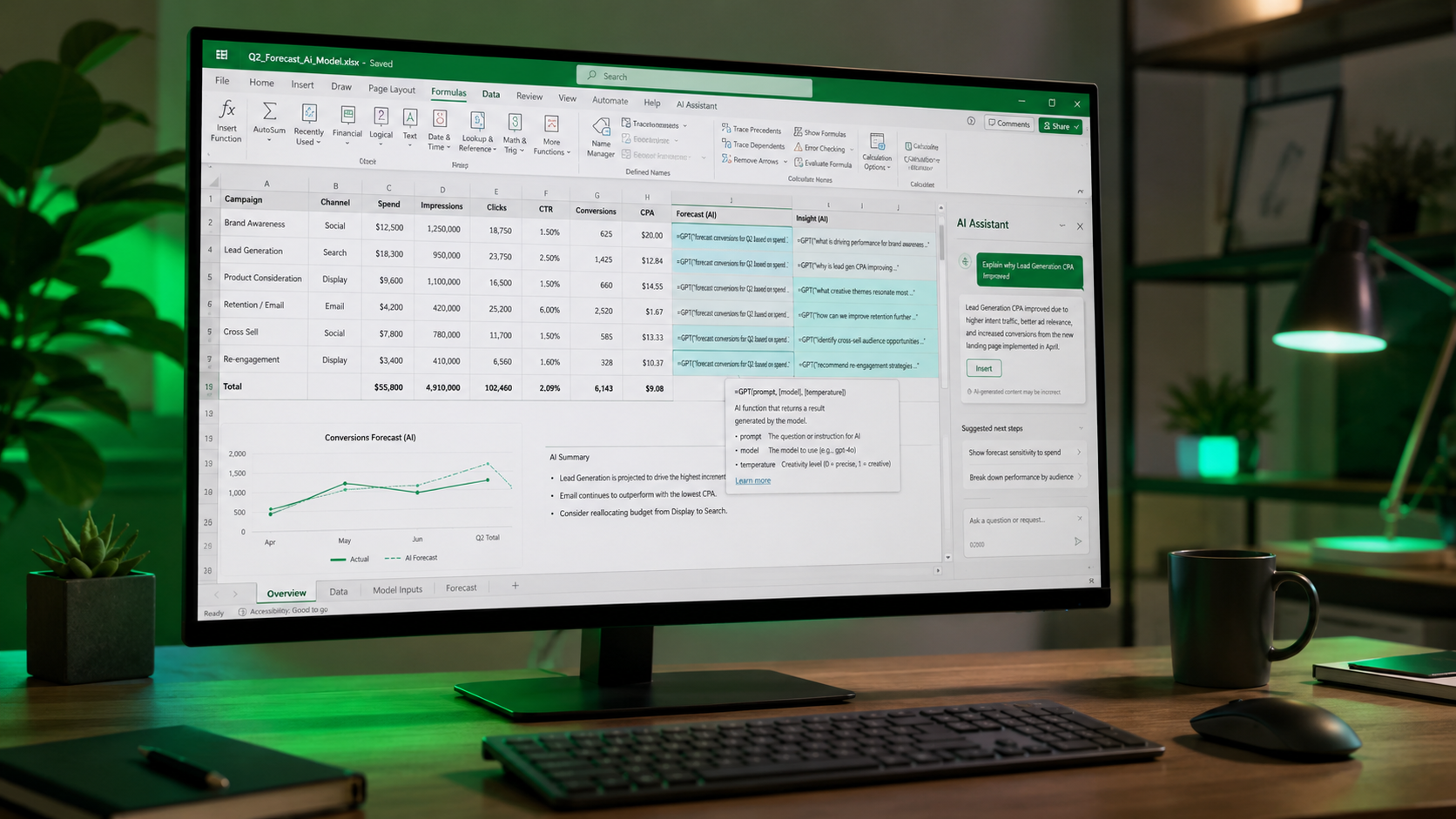
1-2. VLOOKUP/XLOOKUP với AI + Data Cleaning
Use case 1: VLOOKUP/XLOOKUP bằng prompt tự nhiên
Trước đây: nhớ syntax =XLOOKUP(lookup_value, lookup_array, return_array, ...).
Với AI: copy sample 2 sheet, prompt ChatGPT/Claude: ``` Tôi có sheet 1 với cột A là mã nhân viên, cột B là tên. Sheet 2 có cột A là mã nhân viên, tôi muốn điền cột B với tên từ sheet 1. Viết công thức XLOOKUP trong Excel. ```
AI trả về: =XLOOKUP(A2, Sheet1!A:A, Sheet1!B:B, "Không tìm thấy"). Copy paste → chạy.
Advanced: multi-criteria XLOOKUP, approximate match, wildcard search — AI handle hết.
Use case 2: Data cleaning
Task phổ biến dân văn phòng VN:
- Tách họ tên 'Nguyễn Văn A' thành họ 'Nguyễn', tên lót 'Văn', tên 'A'.
- Format SĐT: '0912345678', '+84912345678', '84912345678' → standardize về '+84912345678'.
- Standardize địa chỉ: viết tắt (Q.1, TP.HCM) → full (Quận 1, Thành phố Hồ Chí Minh).
- Remove ký tự đặc biệt: từ Excel copy từ web có \n\t → clean text.
Prompt AI: ``` Cột A là danh sách tên đầy đủ VN. Tôi muốn tách thành 3 cột: Họ (first word), tên lót (middle words), tên (last word). Viết công thức Excel cho cột B (Họ), C (Tên lót), D (Tên). ```
AI trả về formulas phức tạp dùng LEFT, MID, RIGHT, FIND combined. Test 10 dòng, verify đúng, apply cho toàn bộ.
3-4. Pivot Table + Chart recommendation
Use case 3: Pivot Table thông minh
Copilot for Excel: select data → 'Analyze data' hoặc click Copilot sidebar → 'Create a pivot table summarizing revenue by region and product category'. Pivot ready trong 5s.
ChatGPT workflow (nếu không có Copilot): 1. Paste 20 dòng đầu dataset vào prompt: 'Đây là sample 20 dòng từ dataset 5000 dòng sales data.' 2. Prompt: 'Đề xuất 5 pivot table useful cho business review hàng tháng. Explain insight mỗi pivot reveal.' 3. AI đưa 5 pivot suggestion + structure rows/columns/values. 4. Tạo pivot table manual theo suggestion.
Use case 4: Chart type recommendation
Copilot: click Copilot → 'Chart this data for a management report' → AI suggest best chart type (bar, line, scatter, waterfall).
ChatGPT: '5 cột data, 1 column categorical (region), 4 columns numeric (Q1-Q4 sales). Recommend best chart type + reasoning.' → AI đề xuất grouped bar chart with trendline, OR small multiples, OR heatmap.
Rule of thumb chart type: - So sánh values: Bar/Column chart. - Trend theo thời gian: Line chart. - Correlation 2 variables: Scatter plot. - Part-to-whole: Pie chart (khi < 6 category) hoặc stacked bar. - Distribution: Histogram hoặc box plot. - Hierarchy / tree: Treemap.
5-6. Formula debugging + Generate test data
Use case 5: Formula debugging
Task: sếp gửi file Excel với formula =IFERROR(INDEX(MATCH(...)),'') báo #N/A. Bạn không viết formula này.
Workflow: 1. Copy formula + sample data + error row vào ChatGPT/Claude. 2. Prompt: 'Formula này đang báo #N/A cho row 15. Dựa vào data tôi paste, giải thích vì sao lỗi và fix.' 3. AI debug: 'Formula looking for value X trong range Y. Row 15 có giá trị 'HCM' nhưng range Y có 'Hồ Chí Minh'. Fix: use wildcard match hoặc standardize data trước.'
Copilot for Excel có built-in feature 'Explain this formula' — click formula → sidebar explain + suggest improvement.
Use case 6: Generate test data
Task: cần 500 dòng sample data employee để demo workflow cho team.
Prompt ChatGPT: ``` Generate 500 dòng fake employee data với columns: - ID (EMP001-EMP500) - Tên đầy đủ VN realistic - Phòng ban (HR, Marketing, IT, Finance, Operations) - Ngày vào làm (từ 2020-2025 random) - Lương (8-50 triệu VND range realistic theo phòng ban) - City (HCM, Hà Nội, Đà Nẵng, Cần Thơ) Return as CSV format. ```
AI output CSV → paste vào Excel → Data → Text to Columns → split thành cột.
Pro tip: cho Python in Excel, dùng Faker library generate realistic fake data: =PY("from faker import Faker; f=Faker('vi_VN'); [f.name() for _ in range(500)]").
7-8. Convert format + Summary report
Use case 7: Convert format messy data
Task thường gặp: - Cột 'Ngày' có mix format: '01/02/2025', 'Feb 1, 2025', '2025-02-01', '1-Feb-25'. Standardize về 1 format. - Cột 'Số tiền' có '1,000,000 VND', '1M', '1000000', '1.000.000đ'. Convert thành number thuần. - Cột 'Phone' có '0912 345 678', '(091) 234-5678', '+84912345678'. Standardize.
Prompt: ``` Cột A có mix format date. Viết công thức Excel normalize tất cả về format DD/MM/YYYY. Example values: - 01/02/2025 → 01/02/2025 - Feb 1, 2025 → 01/02/2025 - 2025-02-01 → 01/02/2025 ```
AI đưa công thức dùng TEXT(DATEVALUE(...), "DD/MM/YYYY") + IFERROR handling. Apply column-wide.
Use case 8: Summary report từ dataset lớn
Task: sếp yêu cầu summary 1 trang từ dataset 5000 dòng sales quý.
Copilot for Excel tự động: 1. Select data. 2. Copilot sidebar → 'Create executive summary with 5 key insights from this data.' 3. Copilot generate: - Total revenue + YoY growth. - Top 3 region/product by volume. - Trend chart Q1-Q4. - Outlier detection (tháng tăng/giảm bất thường). - Action recommendation.
Workflow không Copilot (ChatGPT): 1. Tạo pivot + chart trong Excel (dùng prompt ở section 3). 2. Export pivot ra CSV hoặc copy paste sang ChatGPT. 3. Prompt: 'Phân tích data pivot này, viết executive summary 300 từ cho management report. Focus key insights + action items.' 4. Paste output vào Excel hoặc Word làm slide.
9-10. Python in Excel + Macro VBA generation
Use case 9: Python in Excel — analysis phức tạp
Python in Excel (Microsoft, launched 2023 stable 2024) cho phép chạy Python trực tiếp trong cell. Features phổ biến:
- Regression analysis với statsmodels.
- Machine learning basic với scikit-learn.
- Plotting chart với matplotlib, seaborn.
- Data manipulation với pandas.
Setup: Excel Desktop → Insert → Python → bắt đầu formula bằng =PY(...).
Example 1: linear regression: ```python =PY(" import pandas as pd from sklearn.linear_model import LinearRegression df = xl("A1:C100", headers=True) # Load data from Excel range X = df[['marketing_spend']] y = df['revenue'] model = LinearRegression() model.fit(X, y) return f'Coef: {model.coef_[0]:.2f}, R2: {model.score(X, y):.3f}' ") ```
Example 2: seasonal decomposition:
Python statsmodels seasonal_decompose phân tích trend + seasonality + residual từ sales monthly data → chart phức thay thế phải dùng SPSS/R.
Pricing: Python in Excel cần M365 subscription (không free). Compute chạy trên Microsoft cloud (không cần local Python install) nhưng có latency 2-5s per cell.
Use case 10: Macro VBA generation
VBA (Visual Basic for Applications) cho repetitive task. Trước đây phải học VBA syntax. Giờ AI write cho bạn.
Example prompt: ``` Viết macro VBA cho Excel: - Loop qua tất cả sheet trong workbook. - Mỗi sheet, tìm cột có header 'Status'. - Row nào có 'Completed' → highlight màu xanh. - Row nào có 'Pending' → highlight màu vàng. - Row 'Failed' → highlight đỏ. - Return message count hoàn thành. ```
AI (GPT-4, Claude) output VBA code ~50-100 dòng. Copy vào VBE (Alt+F11), chạy.
VBA macro có thể chạy code mạnh (file system, network). Review code trước khi run, đặc biệt code từ AI chưa verify. Test trong file sandbox trước khi apply vào file production.
Copilot for Excel vs ChatGPT/Claude — chọn tool nào
| Tiêu chí | Copilot for Excel | ChatGPT Plus / Claude Pro |
|---|---|---|
| Giá/tháng | $30 (M365 Copilot) | $20 |
| Native integration | ✅ Trong Excel | ❌ Copy-paste |
| Access data without leaving Excel | ✅ | ❌ |
| Privacy (data không rời máy) | ✅ Enterprise tier | ❌ Data lên OpenAI/Anthropic |
| Formula generation accuracy | ⭐⭐⭐⭐ | ⭐⭐⭐⭐⭐ |
| Pivot auto-generate | ✅ 1 click | ⚠️ Manual từ suggestion |
| Chart auto-create | ✅ | ❌ |
| Explain formula | ✅ Built-in | ✅ Paste vào prompt |
| Python support | ⚠️ Separate feature | ❌ |
| VBA generation | ⚠️ Limited | ✅ Xuất sắc |
| Multi-language VN | ✅ | ✅ |
Khuyến nghị: - User Excel heavy (3+ giờ/ngày): Copilot for Excel $30 — ROI cao. - User Excel occasional + đã có ChatGPT/Claude: dùng ChatGPT/Claude + copy-paste đủ. - Enterprise với data sensitive: Copilot for Microsoft 365 Enterprise tier có option data stay in tenant, không train OpenAI.
Kết hợp với AI văn phòng 2026 cho full workflow AI office.
Workflow gợi ý — 1 ngày dân văn phòng VN
8:00 - 9:00 sáng: Review email + messages. Dùng ChatGPT draft reply. Copy vào Outlook/Gmail, human polish.
9:00 - 11:00: Data analysis task chính. Select dataset → Copilot 'Analyze this data' → review output → iterate prompt nếu cần.
11:00 - 12:00: Meeting preparation. Prompt: 'Summarize key findings from attached data for 30-min management meeting. Include 3 recommendations.'
13:00 - 15:00 chiều: Report creation. Copilot generate pivot + chart. Manual polish format + add brand template.
15:00 - 17:00: Repetitive tasks. VBA macro từ AI handle data import + cleaning hàng ngày. Setup 1 lần, chạy mãi.
17:00 - 18:00: Wrap up. Sheets template AI-generated cho day-end report. Send via email.
Time saved vs manual: 2-4 giờ/ngày (25-50% working hours). Dùng thời gian này cho strategic work, không còn spreadsheet hell.
HR manager VN (công ty 200 người, dùng Excel heavy cho payroll, KPI, recruitment). Trước AI: 8 giờ/ngày Excel. Sau adopt Copilot + ChatGPT (tháng 3/2025): 4 giờ/ngày Excel + 4 giờ strategic work (analytics, planning, team development). Company promote lên HR Director sau 6 tháng nhờ visible impact.
Câu hỏi thường gặp
Copilot for Excel có bản dùng thử không?
▾
Python in Excel có free không?
▾
Data company confidential paste vào ChatGPT có rủi ro không?
▾
Công ty tôi dùng Google Sheets không phải Excel, AI feature có tương tự?
▾
Prompt AI cho Excel có template chuẩn không?
▾
Formula Bot cho Excel (formulabot.com) có đáng?
▾
AI có viết được Power Query M code không?
▾
Nguồn tham khảo chính thức

Lập trình viên độc lập tại Hà Nội. Tốt nghiệp ĐH Bách Khoa Hà Nội năm 2018, đạt giải nhì FPT Software Innovation Hackathon 2017. Đã ship 8 SaaS công cụ miễn phí (PDF, ImgTools, OneGen, SEOTool, KiTuDacBiet…) phục vụ người Việt từ năm 2018, với hơn 80 tool browser-side, không signup, tôn trọng quyền riêng tư.
Sau khi đọc xong, bạn có thể chuyển sang đúng công cụ liên quan để thử ngay trong bối cảnh thực tế.
Xem AI văn phòng 2026